
How to Invite Families and Manage Your Member Directory
Overview
Once your co-op site is set up, you are ready to bring families on board. This guide covers:
- Sending a membership invitation to a family
- What the invited family sees when they follow the link
- Tracking invitation status
- Viewing and searching the member directory
- Opening a member record and updating a member's role
Step 1: Send an invitation
- Sign in to your admin panel.
- In the left sidebar, click Invite Members.
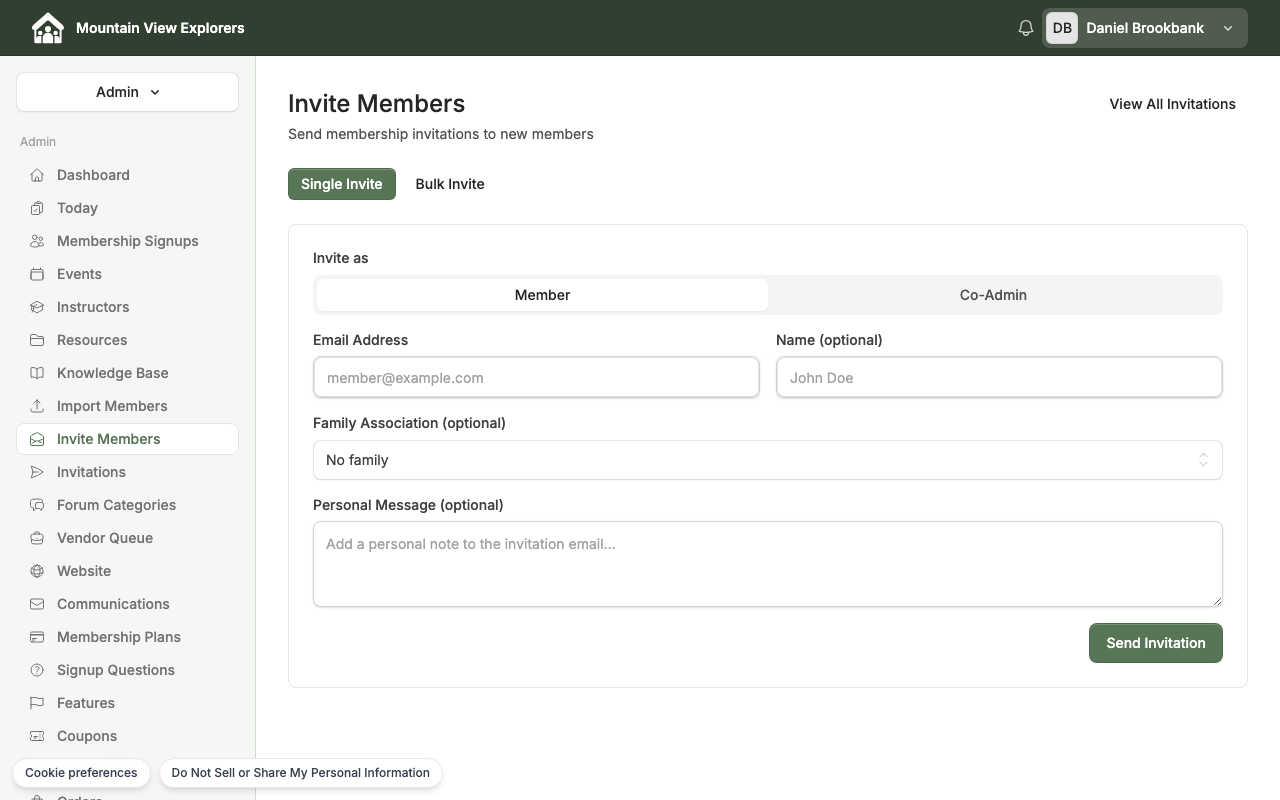
The Invite Members page opens with the Single Invite tab selected.
- Under Invite as, choose the role you are assigning:
| Option | Who it is for |
|---|---|
| Member | A family joining to participate in co-op activities |
| Co-Admin | A trusted parent you want to help manage the co-op |
- Enter the family's Email Address (required).
- Optionally, add the family's Name and select their Family Association from the dropdown if you have families already set up.
- Optionally, type a short note in the Personal Message field — this appears in the invitation email.
- Click Send Invitation.
CooplyHQ sends the family an email with a link to complete their membership application.
Tip: To invite several families at once, click the Bulk Invite tab and follow the on-screen instructions.
Step 2: What the family sees
When a family receives the invitation email and clicks the link, they arrive at your co-op's membership application.
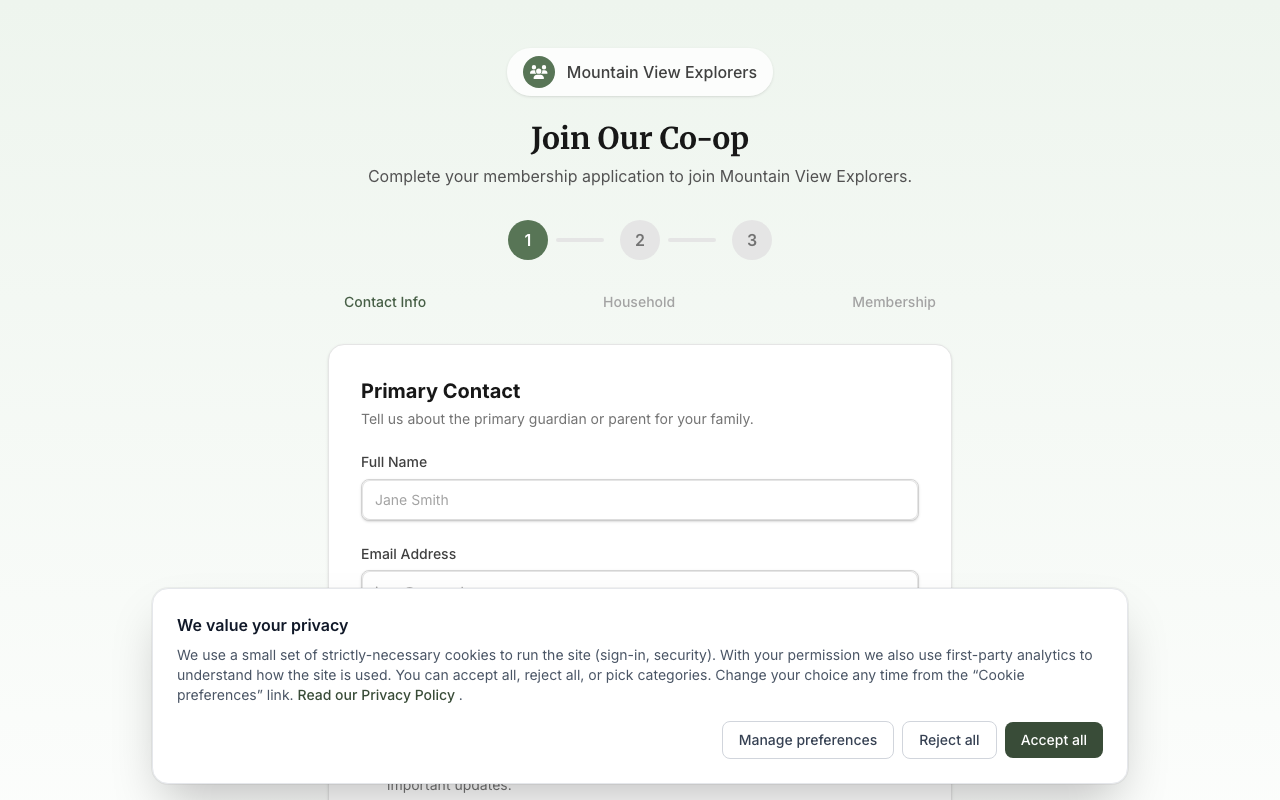
The application walks the family through three steps:
- Contact Info — primary guardian's name, email address, and phone number
- Household — adding children and other household members
- Membership — selecting a membership plan and completing payment (if applicable)
Once submitted, the family appears in your Membership Signups queue for approval.
Step 3: Track invitations
To see the status of every invitation you have sent:
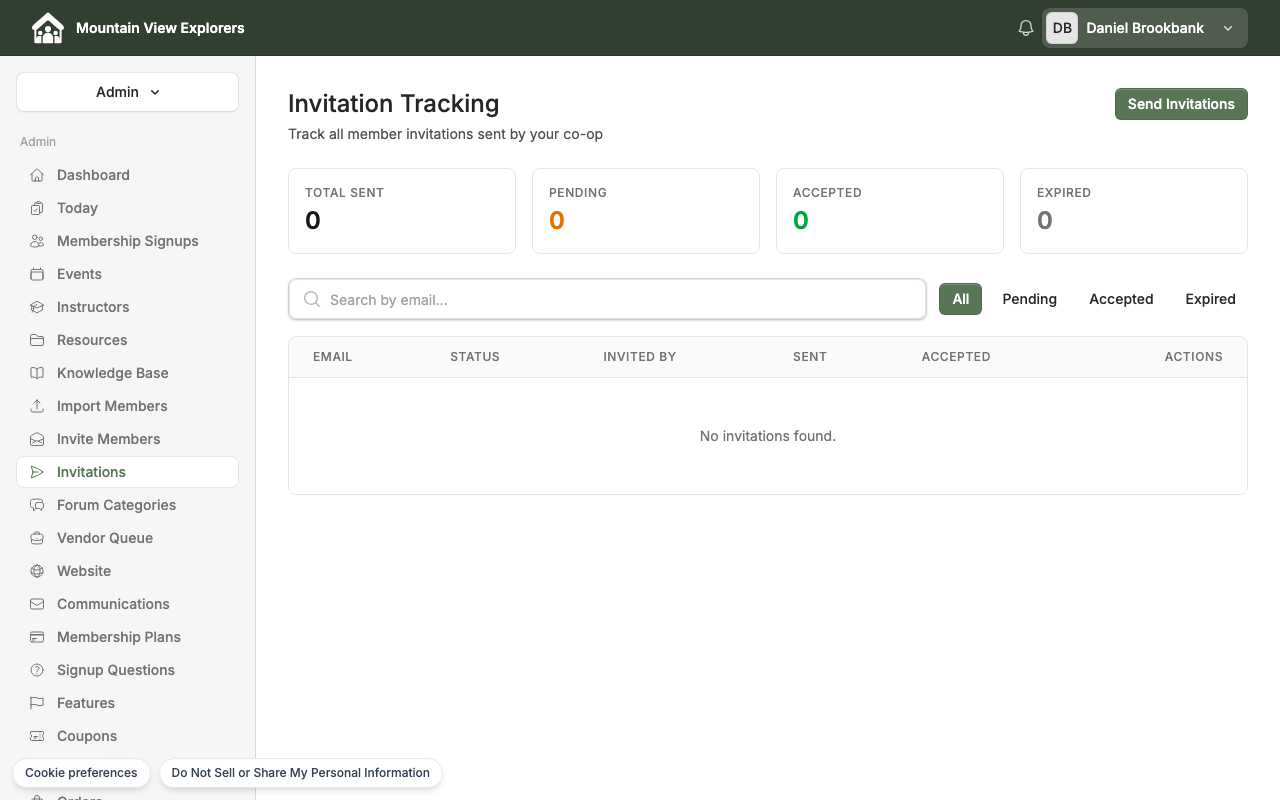
The Invitation Tracking page shows summary counts at the top:
| Counter | Meaning |
|---|---|
| Total Sent | All invitations ever sent |
| Pending | Sent but not yet accepted |
| Accepted | Family completed their application |
| Expired | Invitation link is no longer valid |
Use the Search by email box to find a specific invitation, or use the All / Pending / Accepted / Expired filter tabs to narrow the list.
From the Actions column you can resend or cancel individual invitations.
Step 4: View the member directory
The member directory shows every person who has joined your co-op.
- Go to your admin Dashboard.
- In the dashboard widgets, click Active Families to open the member directory.
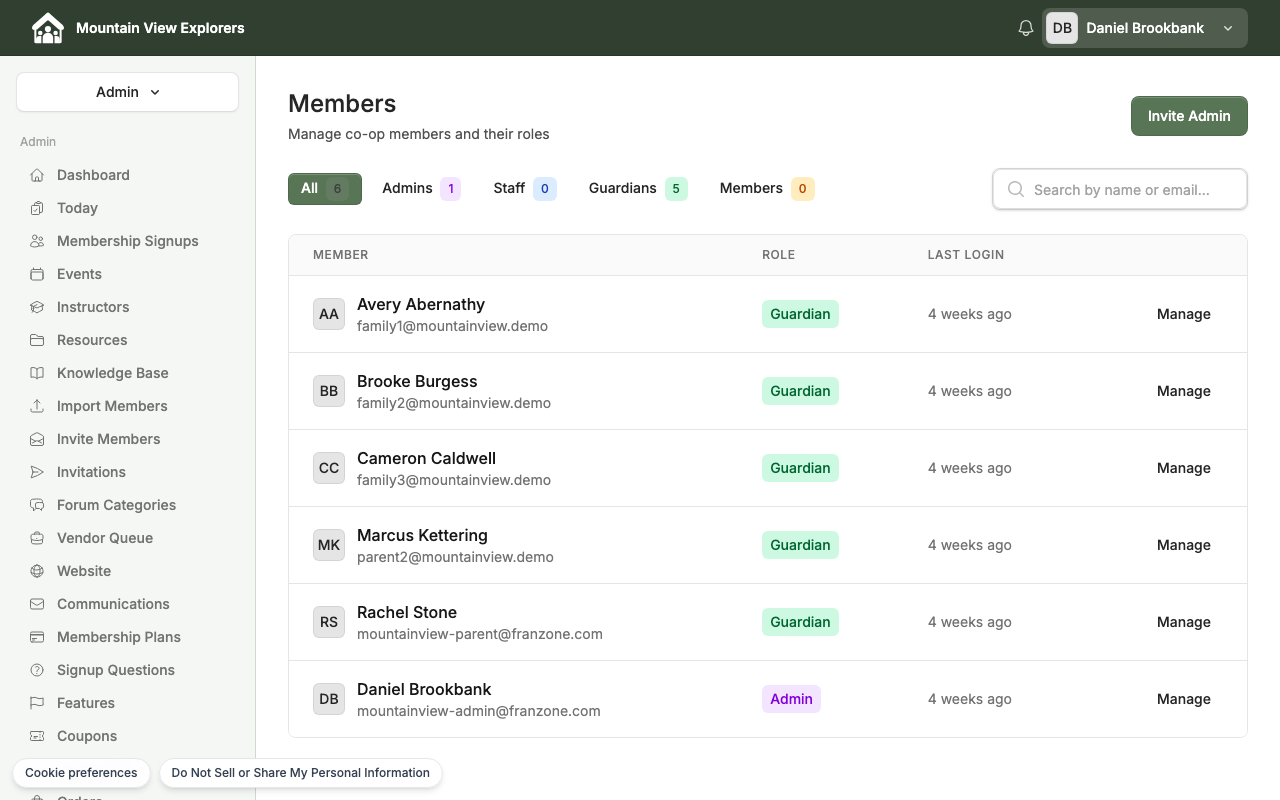
The Members page shows a table with each member's name, email, role, and the date they last logged in.
Filter by role
Use the filter buttons at the top of the list to show only members with a specific role:
| Filter | Who it shows |
|---|---|
| All | Every member, regardless of role |
| Admins | Co-op administrators |
| Staff | Staff members who help manage events and registrations |
| Guardians | Parents and guardians who have completed membership |
| Members | Members with basic access |
Search by name or email
Type in the Search by name or email box to filter the list as you type. This is useful when your co-op has many members and you are looking for a specific person.
Step 5: Open a member record
- In the member directory, find the person you want to view.
- Click Manage on their row.
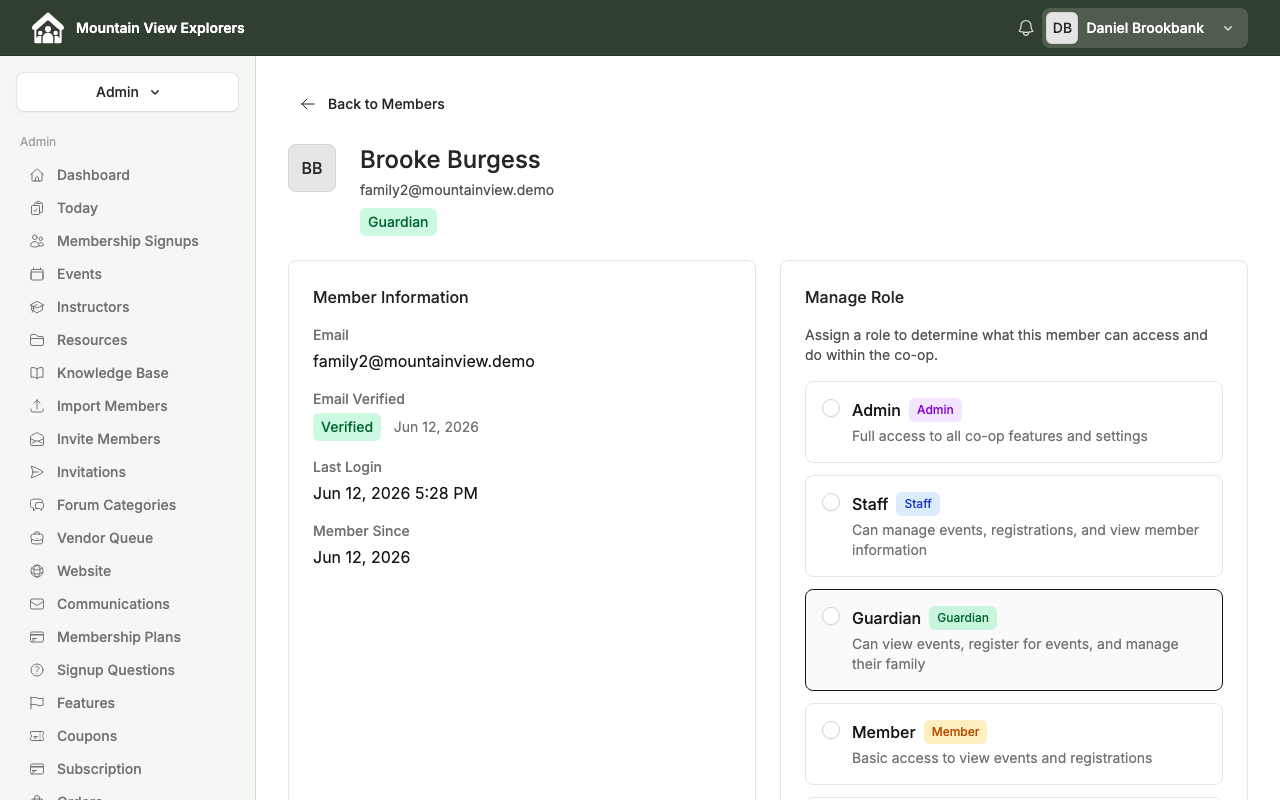
The member detail page shows two sections:
Member Information
| Field | What it shows |
|---|---|
| The member's login email address | |
| Email Verified | Whether the email has been verified, and when |
| Last Login | The date and time of their most recent sign-in |
| Member Since | The date their account was created |
Manage Role
The current role is highlighted. See Step 6 to change it.
Step 6: Change a member's role
- On the member detail page, find the Manage Role section.
- Select the role you want to assign:
| Role | Access level |
|---|---|
| Admin | Full access to all co-op features and settings |
| Staff | Can manage events, registrations, and view member information |
| Guardian | Can view events, register for events, and manage their family |
| Member | Basic access to view events and registrations |
- Click Update Role.
A confirmation message appears when the role is saved.
Next steps
- To approve a family's membership application after they sign up, see How to Review and Approve Membership Signups.
- To create an event for your members to register for, see How to Create an Event and Enable Member Registration.