
How to Grant Website Editor Access (Content Editor Role)
What the Content Editor role is
The Content Editor role lets a member edit your co-op's public website pages — and nothing else. They cannot view your member list, access billing, or change co-op settings.
Use this role when you want a volunteer or parent to keep the website updated without handing over the keys.
Content Editors can:
- Edit and save website pages
- Preview published pages
Content Editors cannot access:
- Member directory or family information
- Billing, payments, or membership plans
- Co-op settings or other admin areas
How to assign the Content Editor role
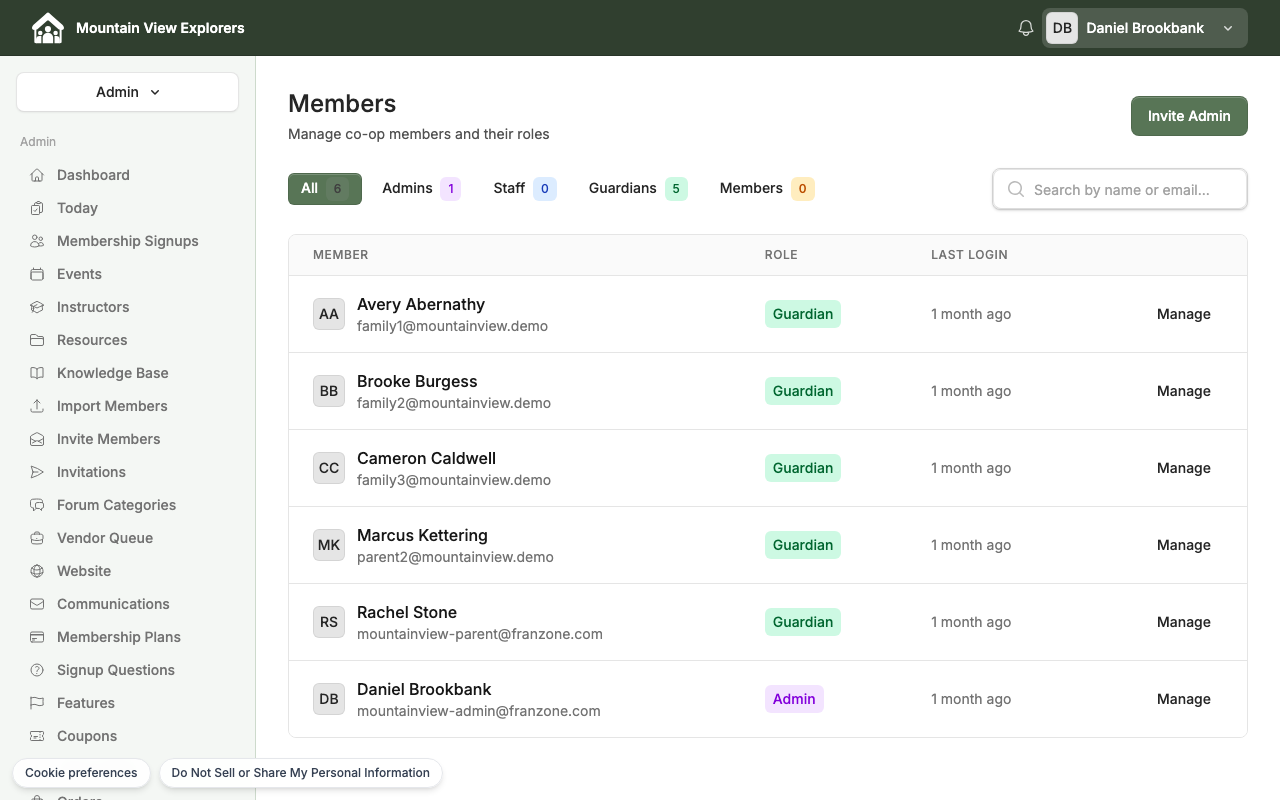
Step 1 — Go to Members
From the Admin panel, click Members in the left sidebar.
Step 2 — Open the member's profile
Find the person you want to give website editor access. Click Manage on their row.
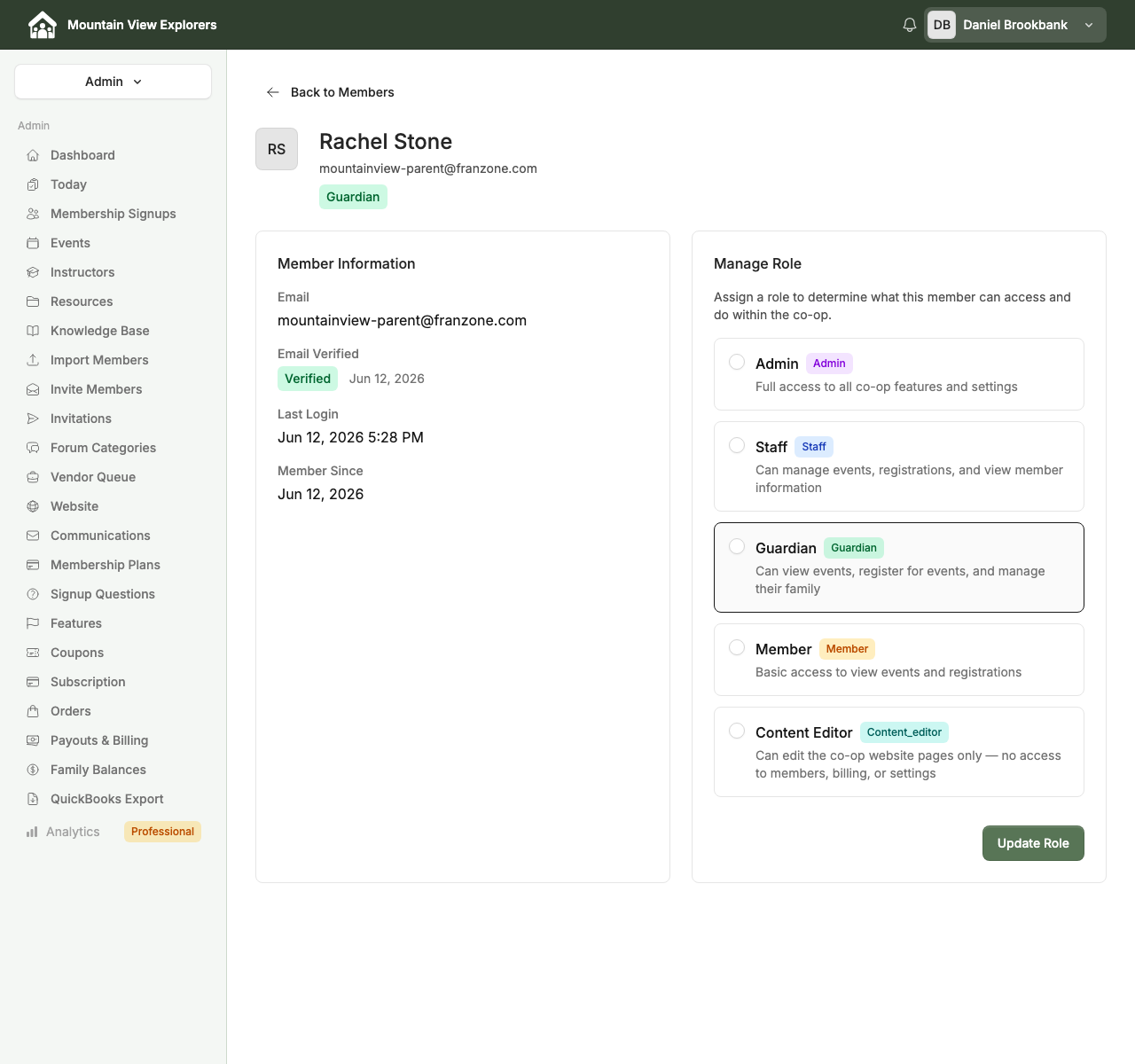
The Manage Role panel lists all available roles. Each role shows what it can and cannot do.
Step 3 — Select Content Editor and save
Scroll to the bottom of the role list and select Content Editor.
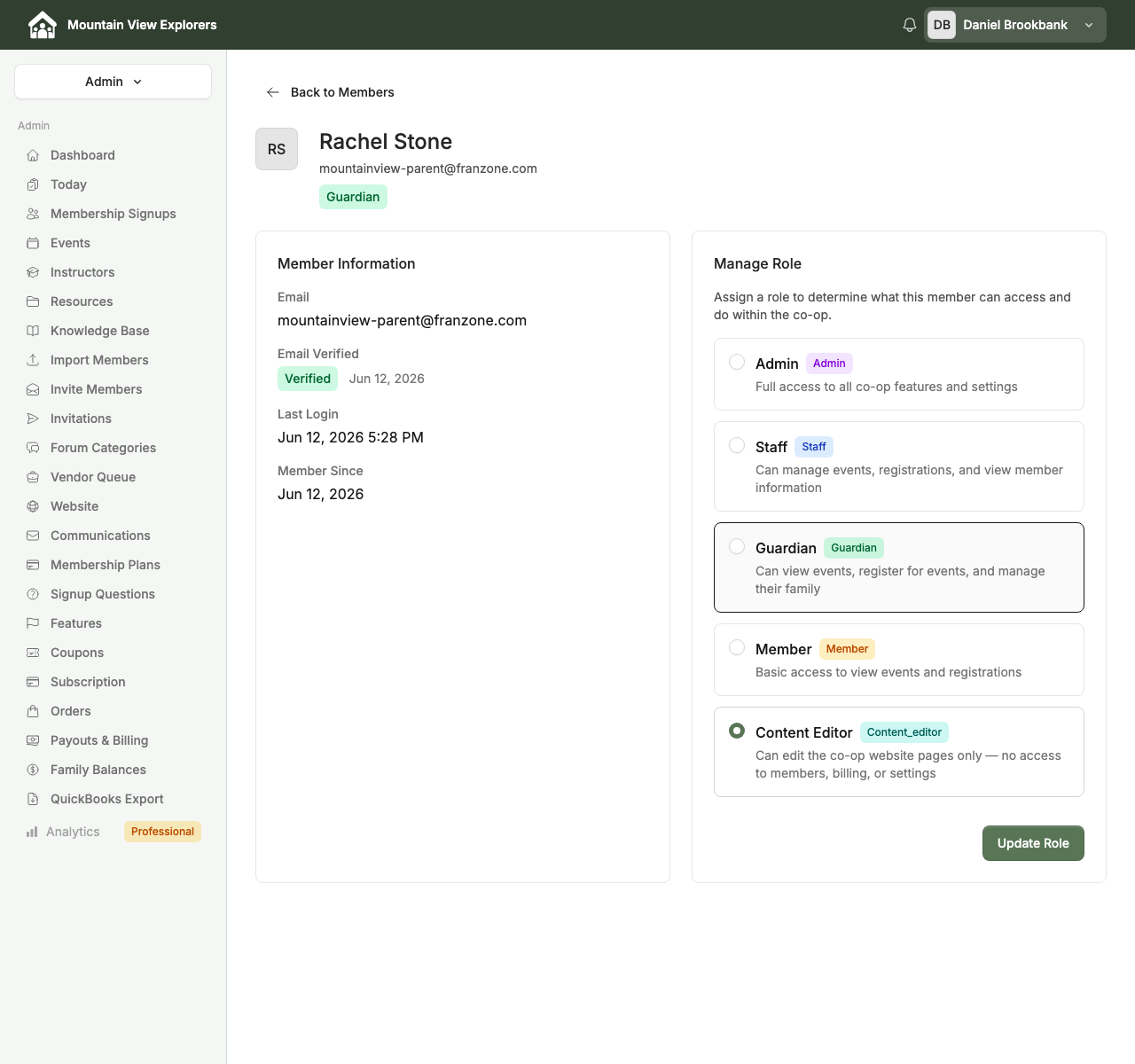
Click Update Role. A green confirmation banner will appear: Role updated to content_editor successfully.
The member can now log in and edit your co-op's website pages.
What the Content Editor sees
When a Content Editor logs in, they land on the Website Pages view. They see only the website section — no member data, events management, or billing screens are visible.
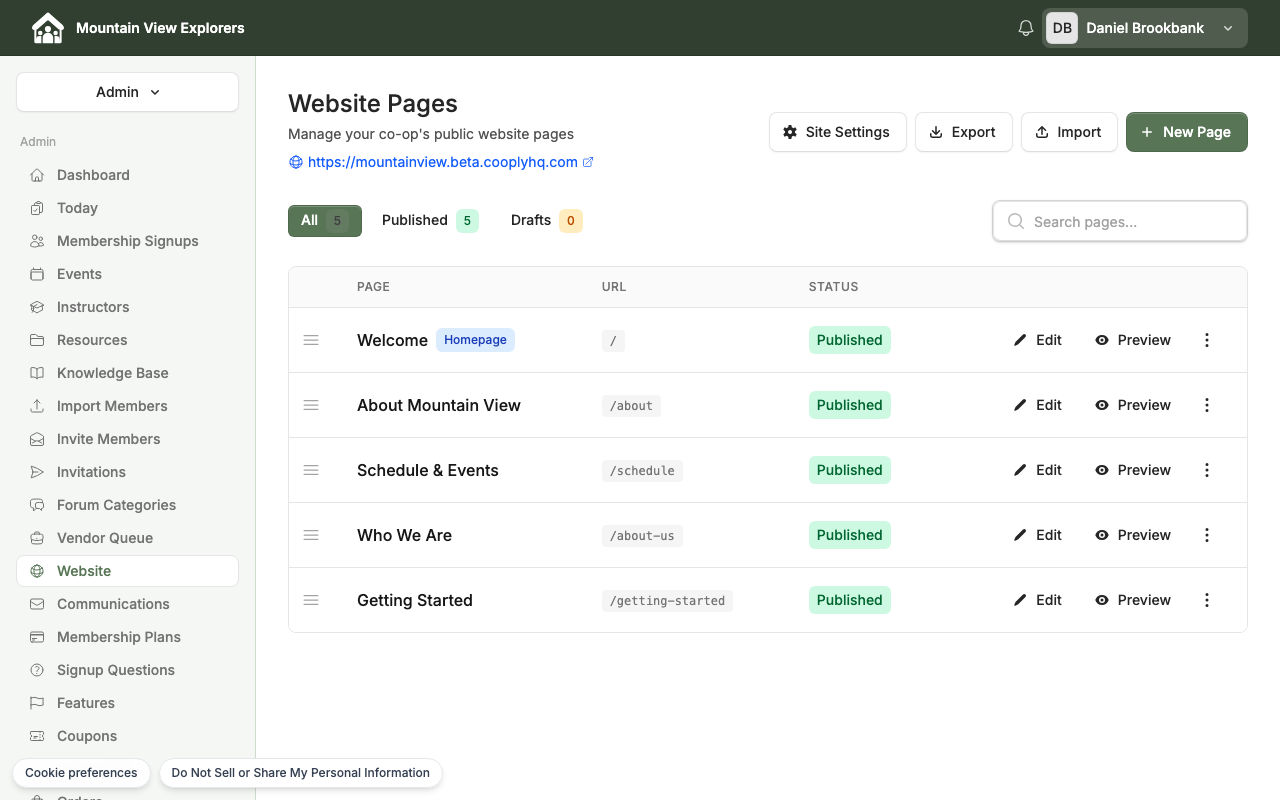
From here they can:
- Click Edit on any page to open the page editor
- Click Preview to see how a page looks on the public site
- Click New Page to add a new page to the website
How to revoke Content Editor access
To remove website editor access, go back to the member's profile (Members → Manage) and assign them a different role — typically Member for a standard co-op participant or Guardian if they are a family account holder.
Click Update Role to save the change. The member will no longer have access to the website editor the next time they log in.
What's next
- How to Configure Your Co-op Settings — manage co-op-wide preferences and branding