How to View and Manage Membership Payments
DraftOverview
The Orders and Payouts sections in your admin panel let you track all membership payment activity and monitor funds deposited to your bank.
Orders —
contentevery payment transaction tied to your membership plans
Payouts — the Stripe transfer history showing when collected funds hit your bank account
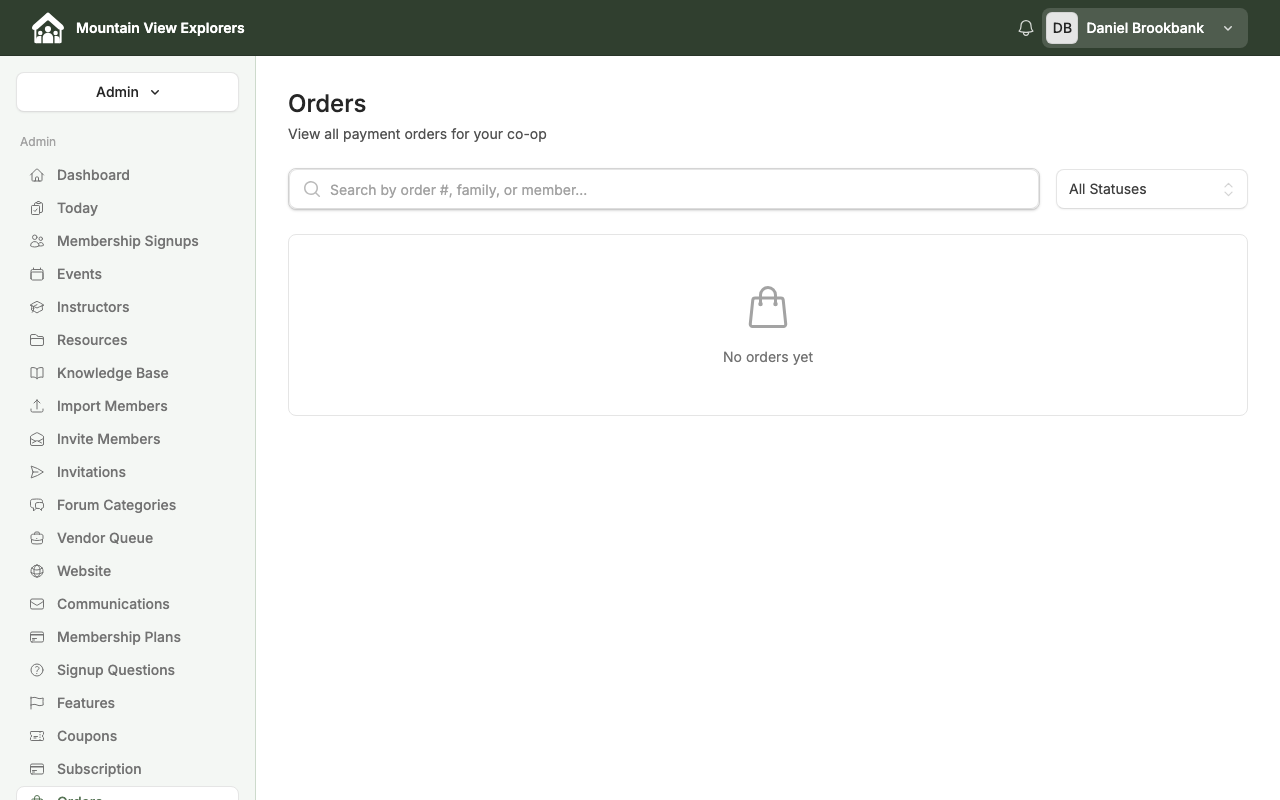
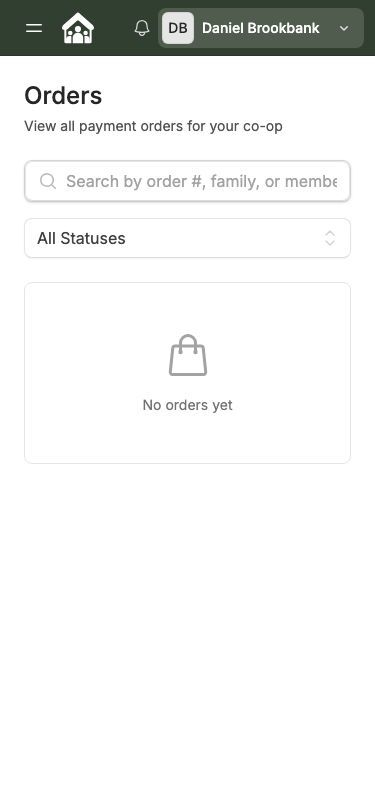
Note: The screenshots below were captured before any membership payments were processed. Screenshots showing populated order rows, order detail views, and payout history will be added once active payment data is available.
Step 1: Open the Orders page
Sign in to your admin panel at yourcoopname.cooplyhq.com.
In the left sidebar, scroll down and click Orders.
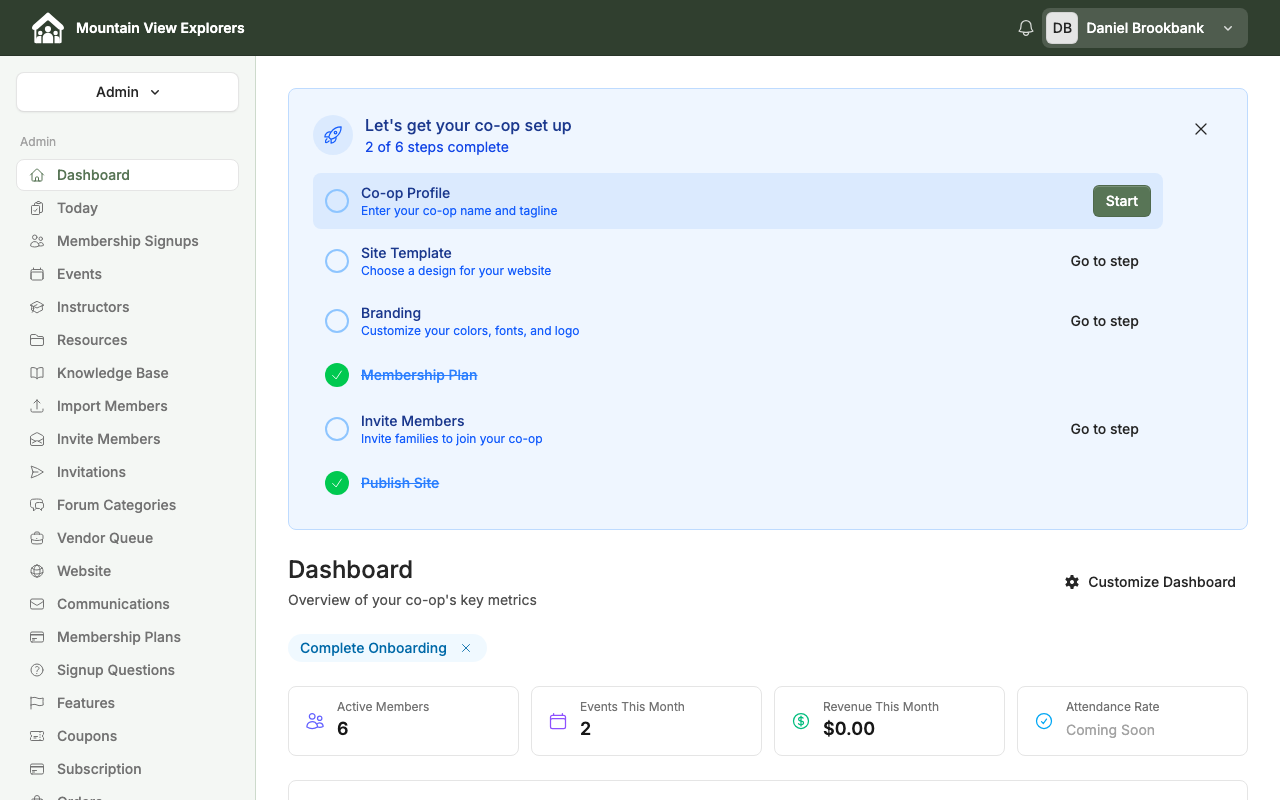
The Orders page opens. When families have completed checkout, each payment appears as a row in the list.
Step 2: Understand the Orders list
Once payments exist, each row in the Orders list shows:
Column
What it shows
Date
When the order was placed
Order #
Unique reference number for the payment
Family
The family who made the payment
Type
The membership plan purchased
Amount
Payment amount charged
Status
Current payment status
Payment statuses:
Status
Meaning
Active
Payment succeeded; membership is in good standing
Past due
A renewal charge failed; the membership may lapse if not resolved
Failed
The payment attempt did not go through
Canceled
The membership was canceled
Populated order list screenshot coming soon. This will be added after Stripe is connected and families have completed checkout.
Step 3: Search and filter orders
Use the controls at the top of the Orders list to find a specific payment:
Search bar — type an order number, family name, or member name to narrow the list
All Statuses dropdown — filter to a specific status (for example, select Failed to see all payments that need attention)
Step 4: View an individual order
Click any order row to open the order detail view. The detail view shows:
Order number, date, and membership plan
Family and member name
Payment amount and payment method on file
Full payment history for that order, including any retry attempts
Order detail screenshot coming soon. This will be added once orders exist in the demo account.
Step 5: Handle a failed payment
When a renewal payment fails, CooplyHQ and Stripe handle the initial response automatically:
The family is notified — they receive an email prompting them to update their payment method.
The order status updates — the row shows Past due or Failed in the Orders list.
Stripe retries the charge — Stripe automatically retries failed payments on a schedule set in your Stripe dashboard.
As the admin, you can monitor failed payments by filtering the Orders list to Failed or Past due and following up directly with affected families if the payment is not resolved after retries.
Step 6: View payouts
Payouts show when funds collected from membership payments are transferred to your bank account.
In the left sidebar, click Payouts.
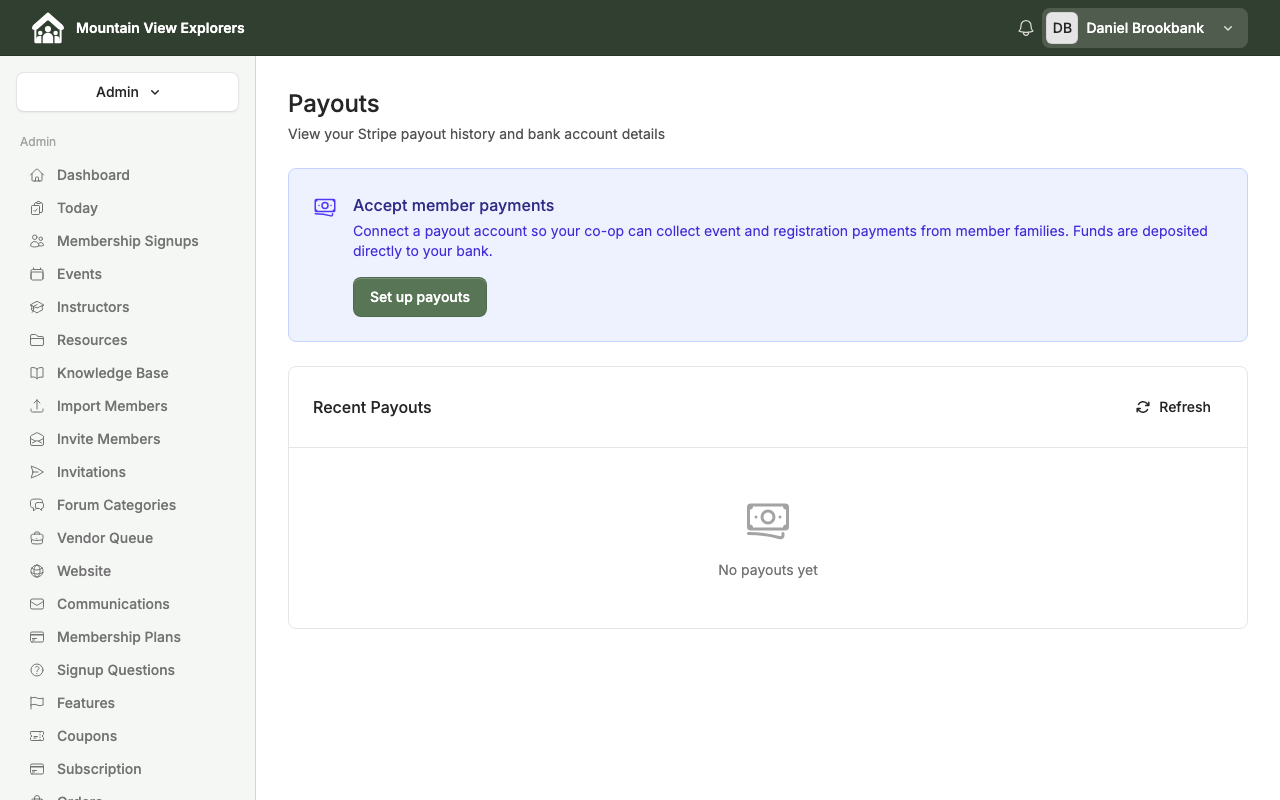
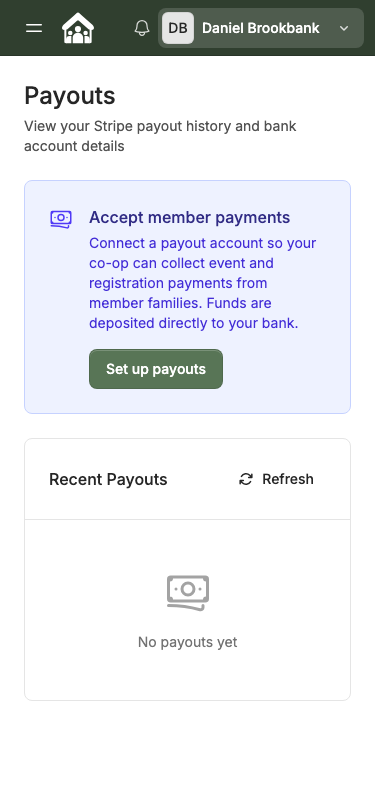
If Stripe is not yet connected, click Set up payouts to begin the Stripe onboarding flow. See How to Set Up Membership Plans and Recurring Payments for a full walkthrough of the Stripe setup process.
Once Stripe is connected, the Recent Payouts section shows each transfer — the date, amount, and destination bank account.
Recent Payouts screenshot coming soon. This will be added after Stripe is connected and at least one payout has been issued.
What's next
How to Set Up Membership Plans and Recurring Payments — create the plans families purchase and connect Stripe
How to Invite Families and Manage Your Member Directory — invite families and manage their membership status