
How to Manage Your Co-op Calendar
Overview
CooplyHQ gives your co-op two calendar tools that work together:
- The Admin Events list — where you create and manage events
- The Public Event Calendar — a month-view grid where members and families browse your schedule
This guide covers both.
Step 1: Open the Events list in your admin panel
- Sign in to your admin panel.
- In the left sidebar, click Events.
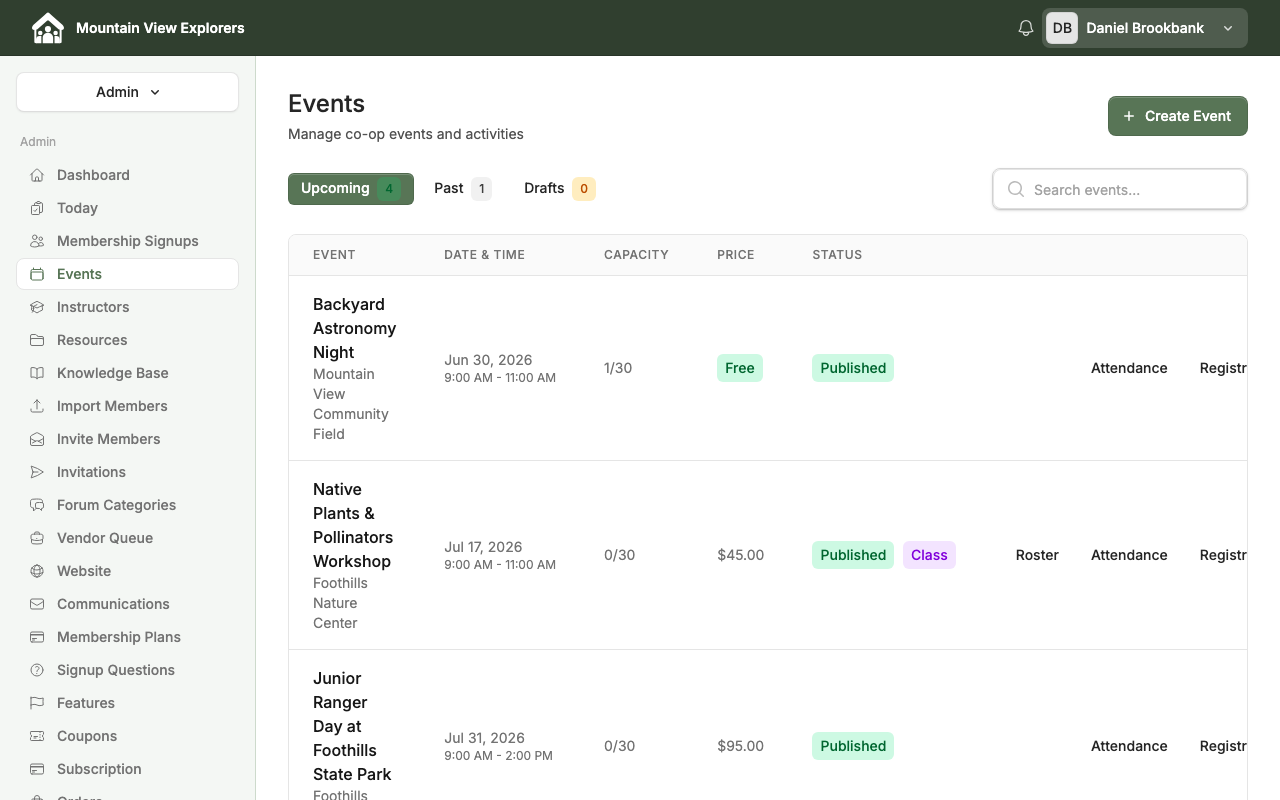
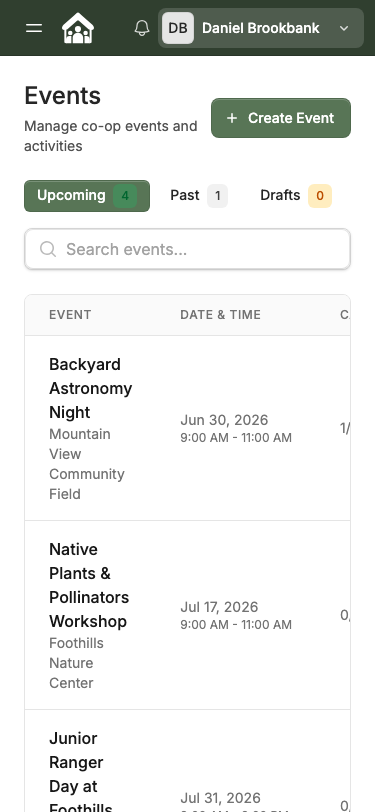
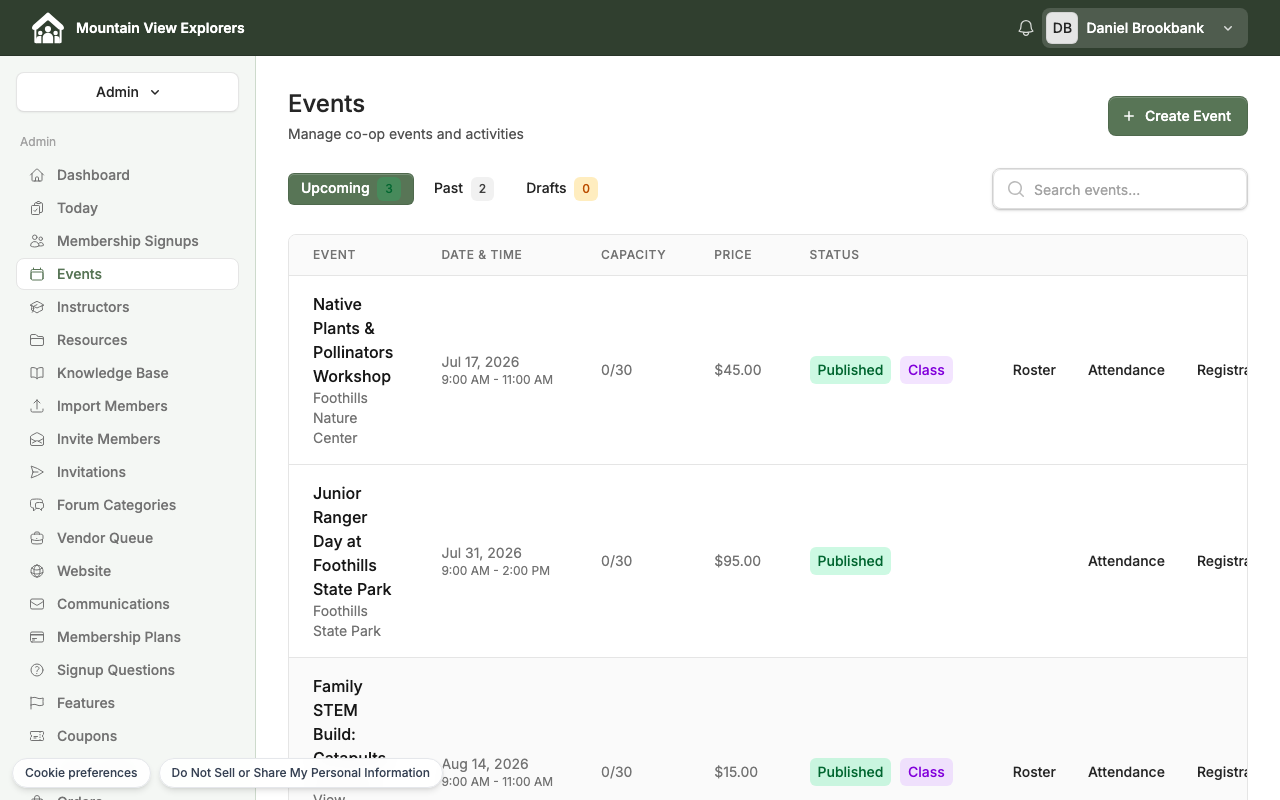
The Events page is your central place to manage your co-op's schedule. Every event you publish here appears on the public Event Calendar.
Step 2: Understand what is on your calendar
The Events list organizes all your events by status using three tabs.
| Tab | What it shows |
|---|---|
| Upcoming | Published events with a future date — visible to members |
| Past | Events that have already occurred |
| Drafts | Events saved but not yet published — admin-only |
Each event row shows:
- Event name and location
- Date and start/end time
- Capacity (spots taken / total)
- Price (Free or paid amount)
- Status badge (Published or Draft)
Use the Search events box to filter by keyword when your list grows long.
Step 3: Add a new event to your calendar
- On the Events page, click + Create Event (top right).
- Fill in the event details.
- Click Publish Event to make it visible to members.
Note: Events are added and edited from the admin Events page. The public calendar grid is view-only — it cannot be used to create or edit events.
For full event creation instructions, see How to Create an Event and Enable Member Registration.
Step 4: View the public Event Calendar — what families see
Members and families browse your schedule at:
yoursite.cooplyhq.com/calendar
To view it yourself, click your co-op's name in the top-left corner of the admin panel to open your public site, then navigate to Schedule & Events in the top navigation.
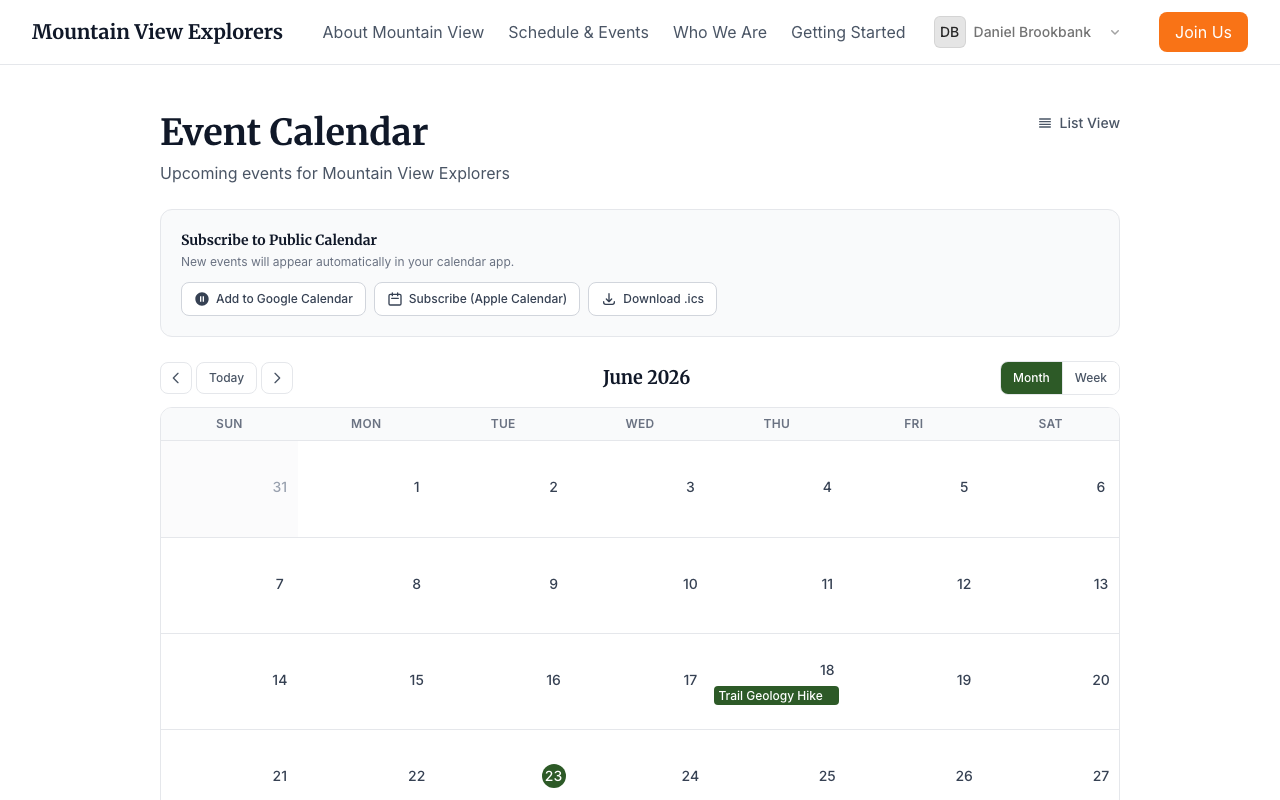
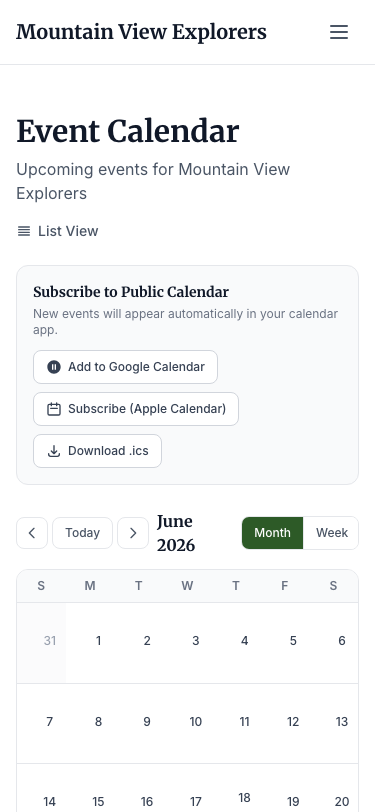
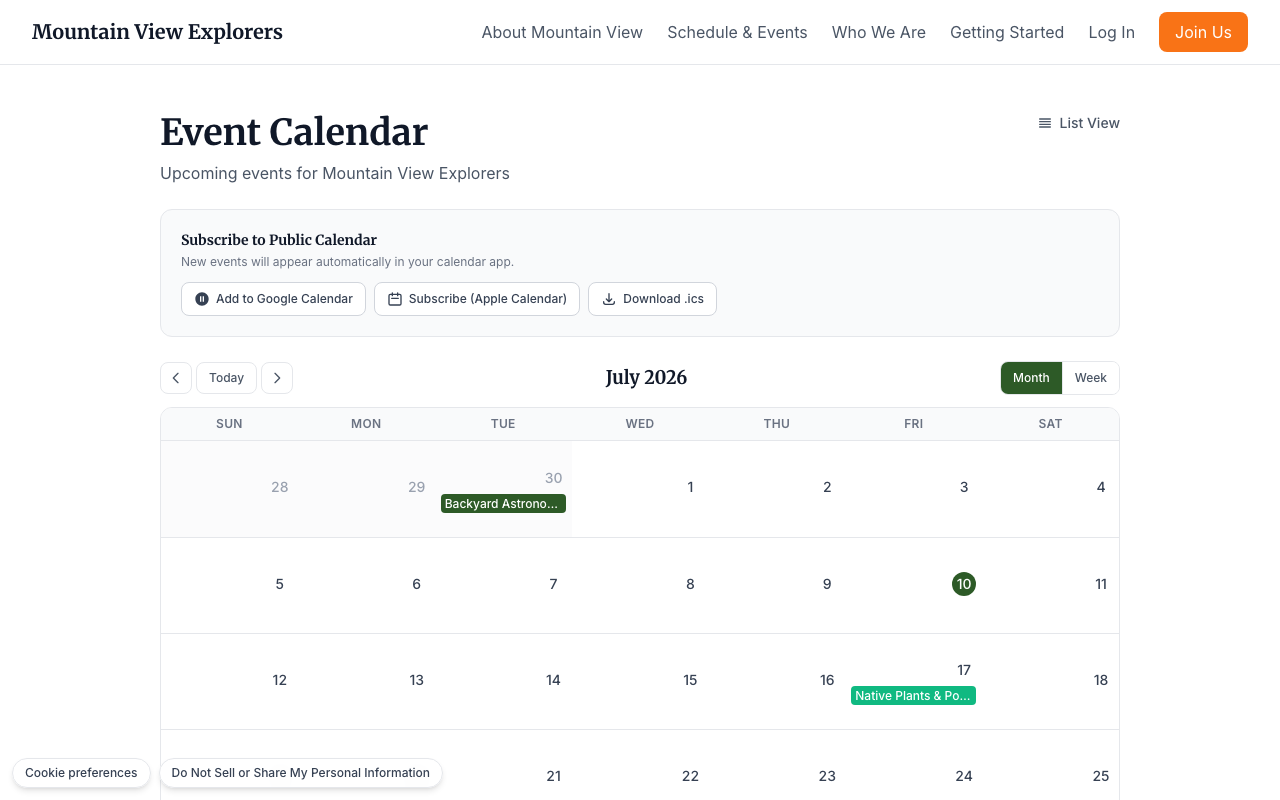
The public Event Calendar shows:
- A month grid with published events placed on their dates
- Navigation arrows (< and >) to move forward and backward by month or week
- A Today button to return to the current date
- A Week button to switch to a week-by-week layout
Subscribe to the calendar
At the top of the calendar page, families see a Subscribe to Public Calendar section.
| Option | What it does |
|---|---|
| Add to Google Calendar | Subscribes to your co-op's live calendar — new events appear automatically |
| Subscribe (Apple Calendar) | Subscribes in Apple Calendar or any compatible calendar app |
| Download .ics | Downloads a snapshot of current events in iCal format |
Sharing this subscription option with families means they always see your latest events without checking your site manually.
Step 5: Browse upcoming events in list format
Families can also view your events as a searchable list at:
yoursite.cooplyhq.com/events
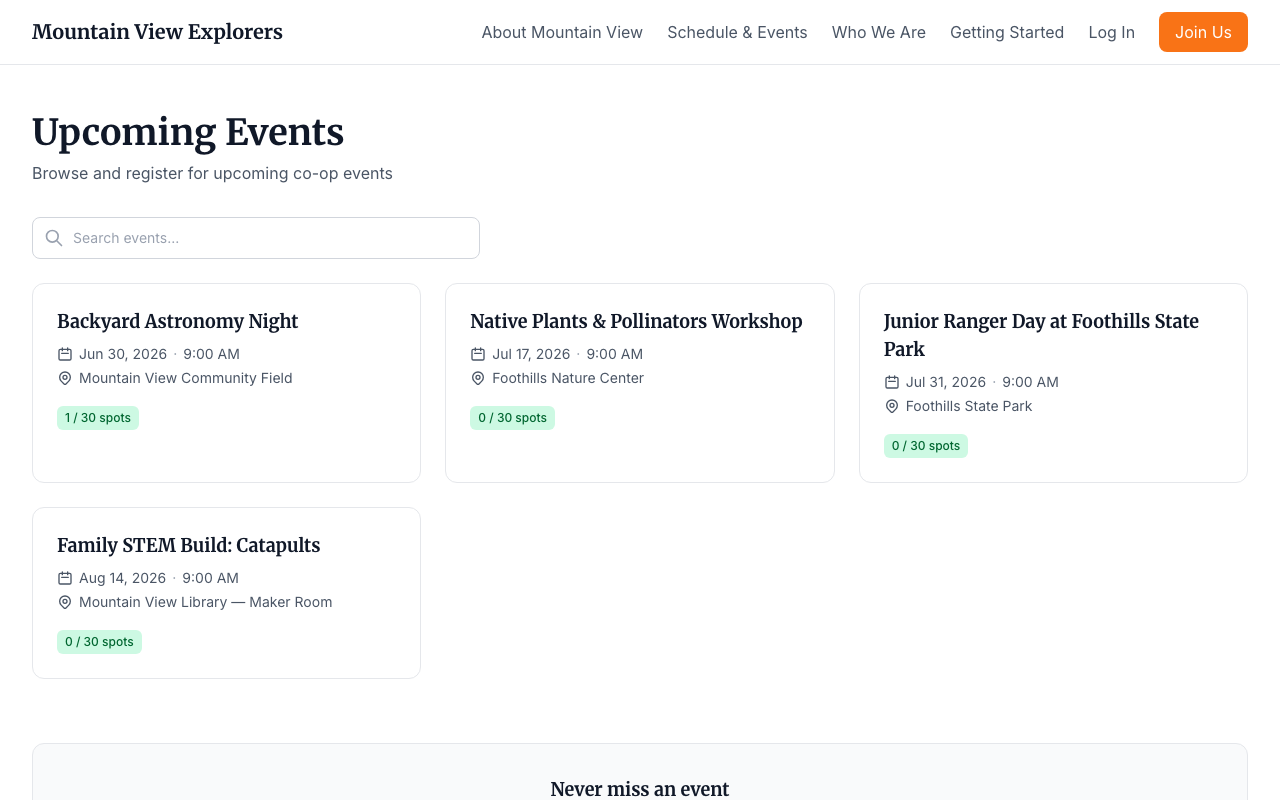
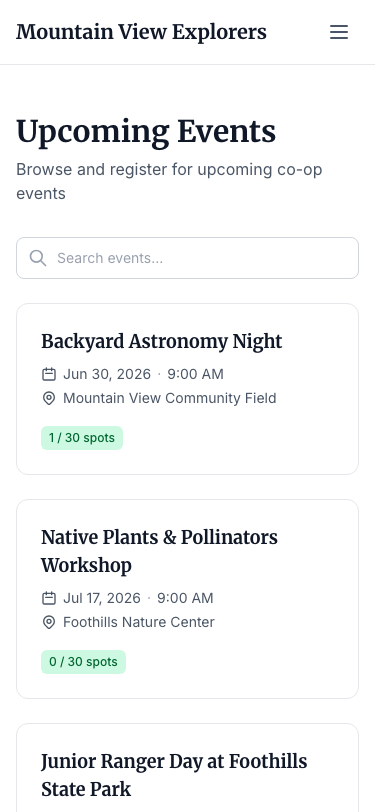
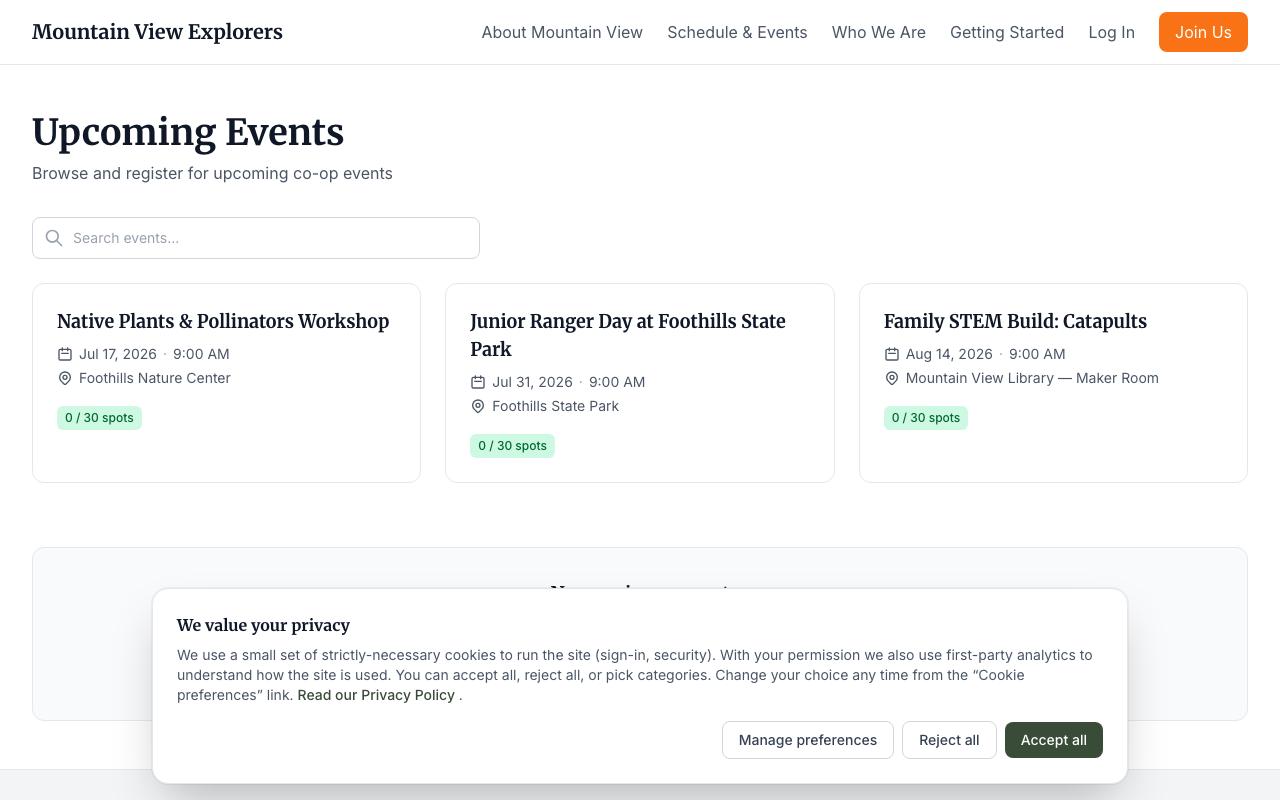
Each event card shows:
- Event name
- Date, time, and location
- Spots remaining (e.g., "4 / 30 spots")
Members can use the Search events box to filter by keyword. To register, they click the event card and follow the steps on the event detail page.
Next Steps
- To create a new event, see How to Create an Event and Enable Member Registration.
- To review who has registered for an event, see How to Manage Registrations and Track Attendance.