Setting Up Stripe Payments: How Onboarding Works and How Fees Are Handled
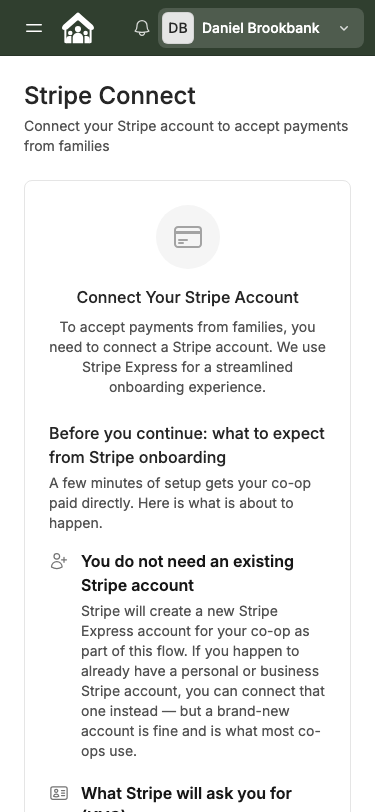
CooplyHQ uses Stripe Express to process payments from families. Before you click Start Stripe Onboarding, here is exactly what to expect — so there are no surprises partway through.
To begin: go to Admin → Payouts & Billing → Stripe Connect in your co-op admin panel.
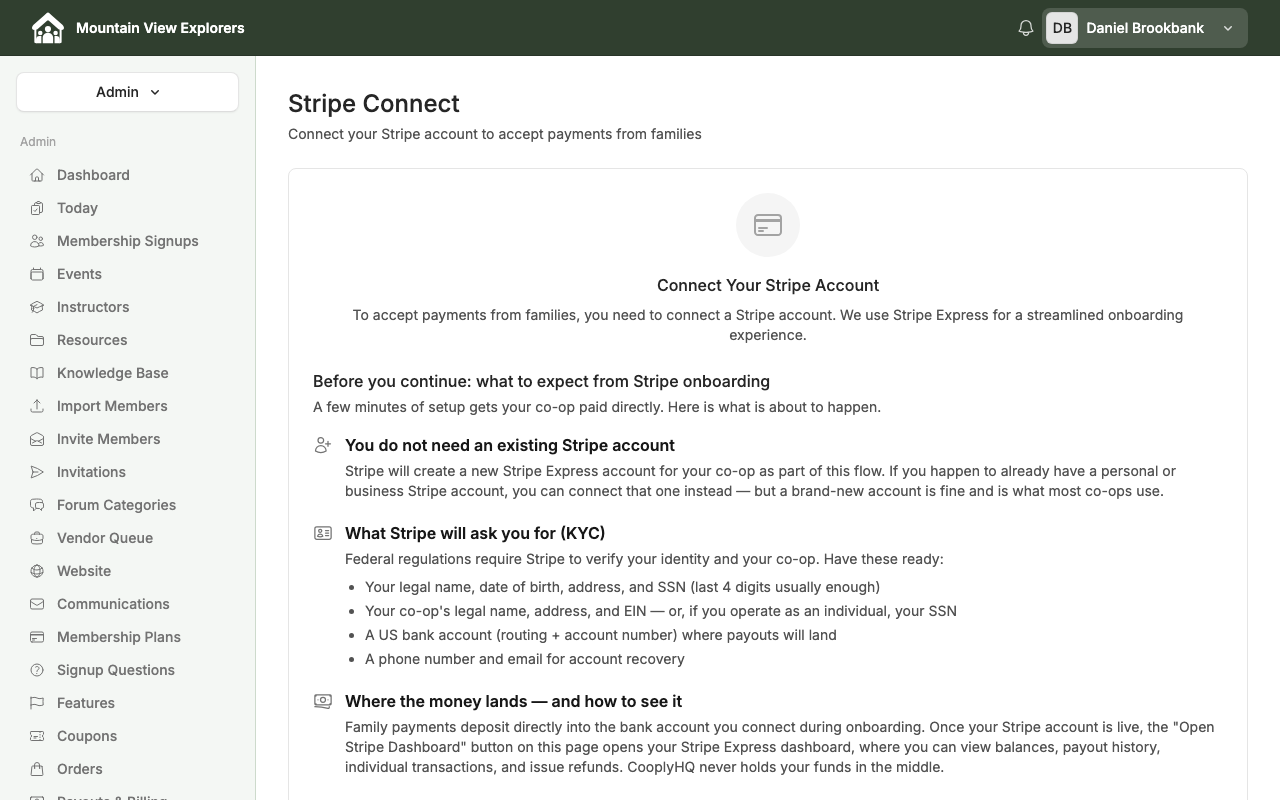
You do not need an existing Stripe account
Stripe will create a new Stripe Express account for your co-op as part of this flow. If you already have a personal or business Stripe account, you can connect that one instead — but a brand-new account is fine and is what most co-ops use.
What Stripe will ask you for (KYC)
Federal regulations require Stripe to verify your identity and your co-op. Have these ready before you start:
- Your legal name, date of birth, address, and SSN (last 4 digits usually enough)
- Your co-op's legal name, address, and EIN — or, if you operate as an individual, your SSN
- A US bank account (routing + account number) where payouts will land
- A phone number and email for account recovery
Stripe's onboarding form walks you through each step. Most co-op admins complete it in about 10 minutes. Your information goes directly to Stripe — CooplyHQ never sees or stores it.
Where the money lands — and how to see it
Family payments deposit directly into the bank account you connect during onboarding. CooplyHQ never holds your funds in the middle.
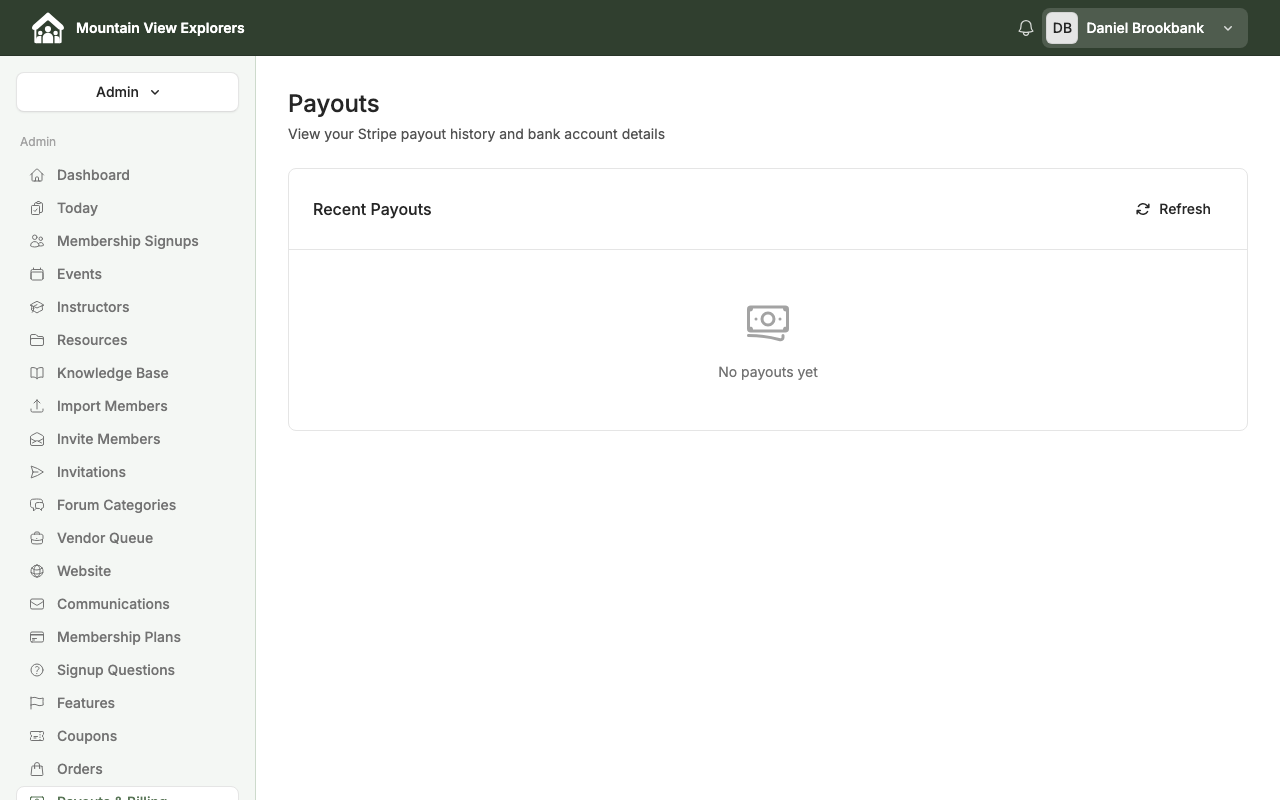
Once your Stripe account is live, the Open Stripe Dashboard button on the Stripe Connect page opens your Stripe Express dashboard, where you can view balances, payout history, individual transactions, and issue refunds.
How Stripe fees are handled
Stripe charges a processing fee on each card payment (typically 2.9% + 30¢). CooplyHQ gives you control over how those fees are handled. You set the mode per priced item — membership plans, events, classes, and classified listings each have their own setting.
Two modes are available:
Absorb (default)
Your co-op pays the Stripe processing fee. Families pay the sticker price exactly. If you list a class at $50, the family pays $50 and your co-op receives the remainder after Stripe's fee.
Choose Absorb when you want the simplest checkout experience for families and are comfortable building the fee into your pricing.
Gross-up
One all-in price for families, with the Stripe fee baked into the displayed amount. The buyer effectively pays the fee.
Example: If you want to net $50, CooplyHQ calculates the grossed-up price (approximately $52.06) so that after the Stripe fee is deducted, you receive exactly $50.
Choose Gross-up when you want your co-op to net a specific amount on every transaction.
Why checkout happens on checkout.stripe.com
When a family clicks to pay, they are redirected to checkout.stripe.com — Stripe's PCI-compliant hosted checkout page — to enter card or bank details, then returned to your co-op site.
Card numbers never touch CooplyHQ's servers. This keeps your co-op completely out of PCI compliance scope — a significant benefit that removes a large category of data security requirements from your organization.
Ready to connect?
Go to Admin → Payouts & Billing → Stripe Connect and click Start Stripe Onboarding. The guided Stripe flow takes a few minutes. Once complete, your co-op can immediately start collecting payments from families.