
How to Review and Approve Membership Signups
Overview
When families submit a membership application through your co-op's public website, their application lands in the Membership Signups queue. You review each application and approve, decline, or put it on hold.
Note: The screenshots below were captured before any membership applications were submitted. Screenshots showing populated application rows and the application detail view will be added once real signups exist in the demo account.
Step 1: Open the Membership Signups queue
- Sign in to your admin panel at
yourcoopname.cooplyhq.com. - In the left sidebar, click Membership Signups.
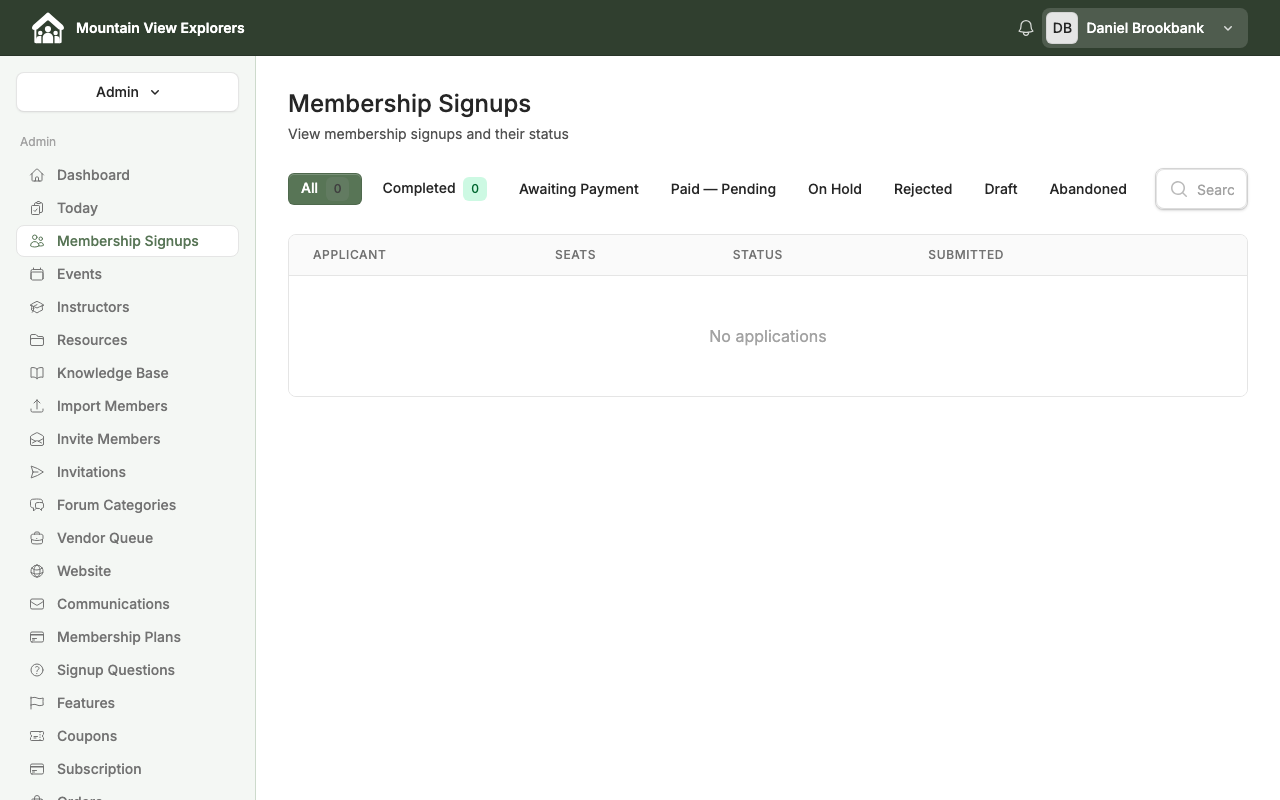
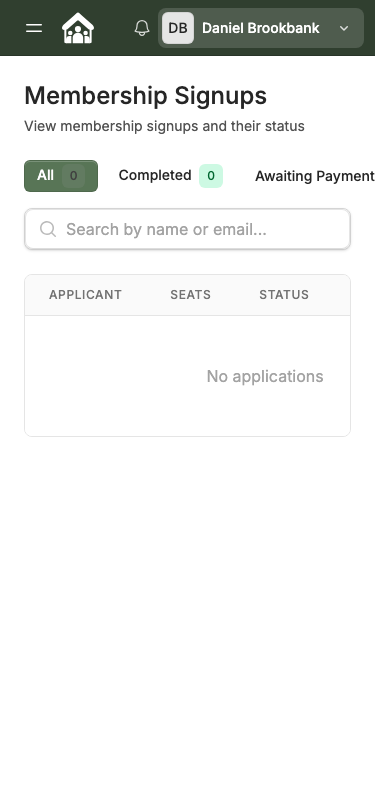
The Membership Signups page opens and shows all applications, organized by status tab.
Step 2: Understand the application statuses
Use the status tabs at the top of the page to filter applications:
| Tab | What it shows |
|---|---|
| All | Every application regardless of status |
| Completed | Applications that are fully approved and the family has active membership |
| Awaiting Payment | Approved applications waiting for the family to complete payment |
| Paid — Pending | Payment received; awaiting your final approval |
| On Hold | Applications you have paused pending more information |
| Rejected | Applications you have declined |
| Draft | Incomplete applications the family has not yet submitted |
| Abandoned | Applications started but not submitted within the expiry window |
Each row in the list shows:
| Column | What it shows |
|---|---|
| Applicant | The primary contact name for the applying family |
| Seats | Number of membership seats requested |
| Status | Current application status |
| Submitted | Date the application was submitted |
Populated application list screenshot coming soon. This will be added once families have submitted membership applications.
Step 3: Review an application
- Click any row in the Membership Signups list to open the application detail.
The application detail page shows:
Primary Contact
- Full name, email address, and phone number of the parent or guardian who submitted the application
Household Details
- Names and ages of household members being added as co-op members
- Total seats requested
Membership Plan
- The plan the family selected and its price
Actions panel
Application detail screenshot coming soon. This will be added once a real application exists in the demo account.
Step 4: Approve an application
- On the application detail page, click Approve in the Actions panel.
- Confirm the approval in the dialog that appears.
What happens next:
- If the selected membership plan has a cost, the application moves to Awaiting Payment and the family receives an email with a link to complete checkout.
- If the plan is free, the application moves directly to Completed and the family receives access to your co-op.
- The family appears in your member directory once their status reaches Completed.
Step 5: Put an application on hold
Use Put On Hold when you want to pause an application without declining it — for example, if you need more information from the family or are at capacity.
- On the application detail page, click Put On Hold.
- Optionally, add a reason in the dialog.
- Click Confirm to save.
The application moves to the On Hold tab. You can return to it at any time and approve or reject it.
Step 6: Reject an application
- On the application detail page, click Reject.
- Optionally, add a reason in the dialog. The family will not see this reason unless you choose to communicate it separately.
- Click Confirm to reject.
The application moves to the Rejected tab. The family is notified by email that their application was not approved.
What's next
- How to Invite Families and Manage Your Member Directory — invite families directly and manage their membership status
- How to View and Manage Membership Payments — track payment orders and Stripe payouts once families have completed checkout