How to Manage Standing Volunteer Roles
Standing Volunteer Roles are recurring, year-long positions — like Treasurer, Newsletter Editor, or Field Trip Coordinator — that your co-op needs filled every year. Unlike one-off volunteer slots tied to a specific event, standing roles represent the ongoing structure of your co-op. Admins define the roles; members claim them from their dashboard.
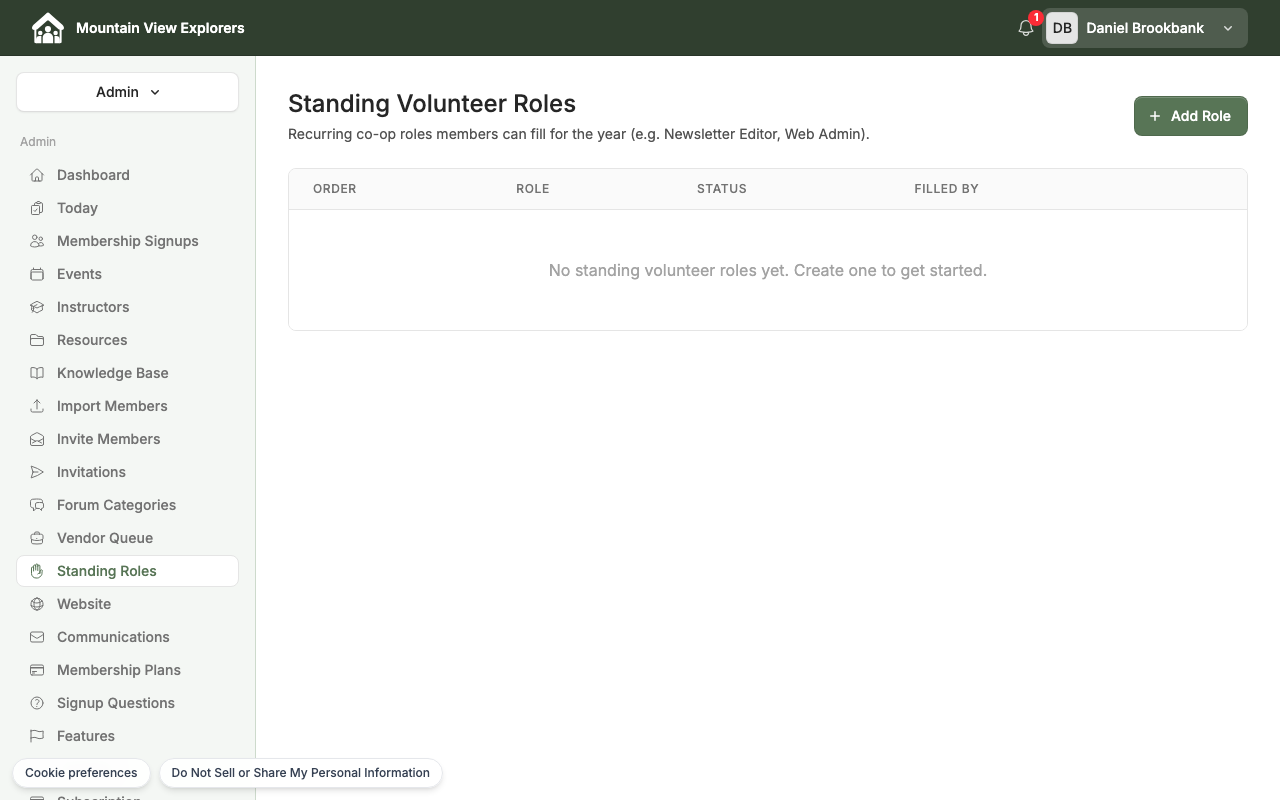
Create a Standing Role
Only co-op admins can define standing roles.
- In the admin portal, go to Community → Volunteer Roles.
- Click Add Role in the top-right corner.
- Fill in the role details:
- Name — the role title members will see (e.g., Field Trip Coordinator)
- Description — optional; a short summary of what the role involves
- Display Order — lower numbers appear first in the member list
- Active — leave checked to make the role visible and claimable by members
- Click Create Role.
The role appears in the table immediately. Its status shows Vacant until a member claims it.
To edit a role later, click Edit in the row. To remove a role permanently, click Delete — note that filled roles cannot be deleted until released.
How Members Claim a Role
Members see the Standing Volunteer Roles card on their dashboard.
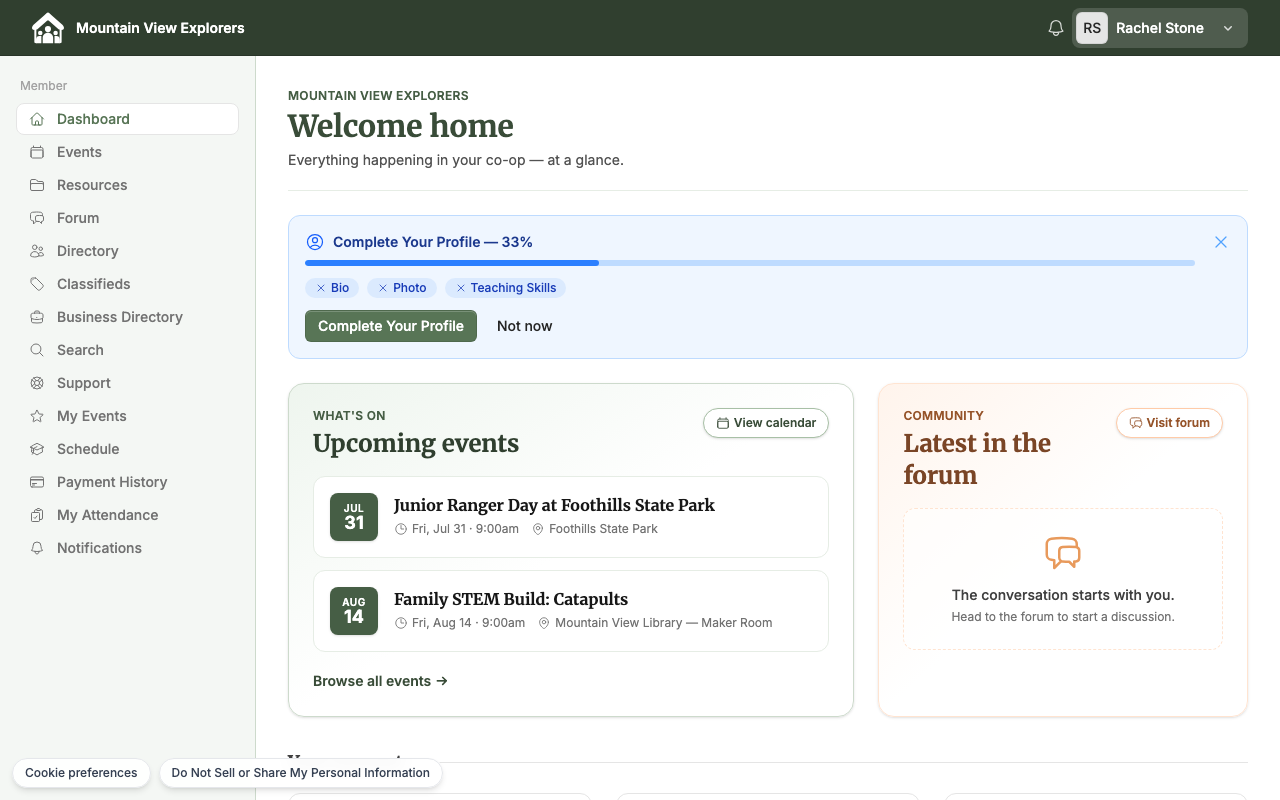
- From the member portal, go to the Dashboard.
- Find the Standing Volunteer Roles card.
- Browse the list of vacant roles. Each role shows its name and description.
- Click Claim next to the role you want to take on.
The card updates immediately to confirm the role and show the member as the current holder. A member can only hold one standing role at a time. If all roles are filled, the card says so and shows the option to suggest a new one.
To step down from a role, the member clicks Give up this role on their dashboard. The role returns to vacant and becomes available for another member to claim.
Suggest a New Role
If a member wants to volunteer in a way that isn't listed, they can suggest a new role:
- From the Standing Volunteer Roles card on the dashboard, scroll to the Suggest another role field at the bottom.
- Type a short description of the role (e.g., Carpool coordinator).
- Click Suggest.
CooplyHQ records the suggestion. To act on it, create the role manually in the admin portal using the steps above.
Release a Role at Year-End
At the start of a new co-op year — or any time a member steps down and you need to reassign a role — release it from the admin portal:
- Go to Community → Volunteer Roles.
- Find the filled role in the table. The Filled By column shows the current holder.
- Click Release next to their name.
- Confirm when prompted.
The role status changes back to Vacant. Members can now claim it again from their dashboards.
To reset all roles at the start of a new year, release each filled role one at a time.
What's next
- Review your co-op membership roster: How to Invite Families and Manage Your Member Directory
- Set up recurring membership dues: How to Set Up Membership Plans and Recurring Payments