How to Export Co-op Finances (QuickBooks-compatible files)
What this export does
CooplyHQ lets you export your co-op's finances for your accountant in a format that can be imported into QuickBooks. The export is a .zip file containing four CSV reports:
- Accounts Receivable (AR) — outstanding balances owed to the co-op
- Invoices — all invoices issued during the period
- Payments — payments received from families
- Adjustments — any manual billing adjustments
This is a file export, not a QuickBooks integration or live sync. Your accountant imports the files manually into QuickBooks.
How to export your finances
Step 1 — Open QuickBooks Export
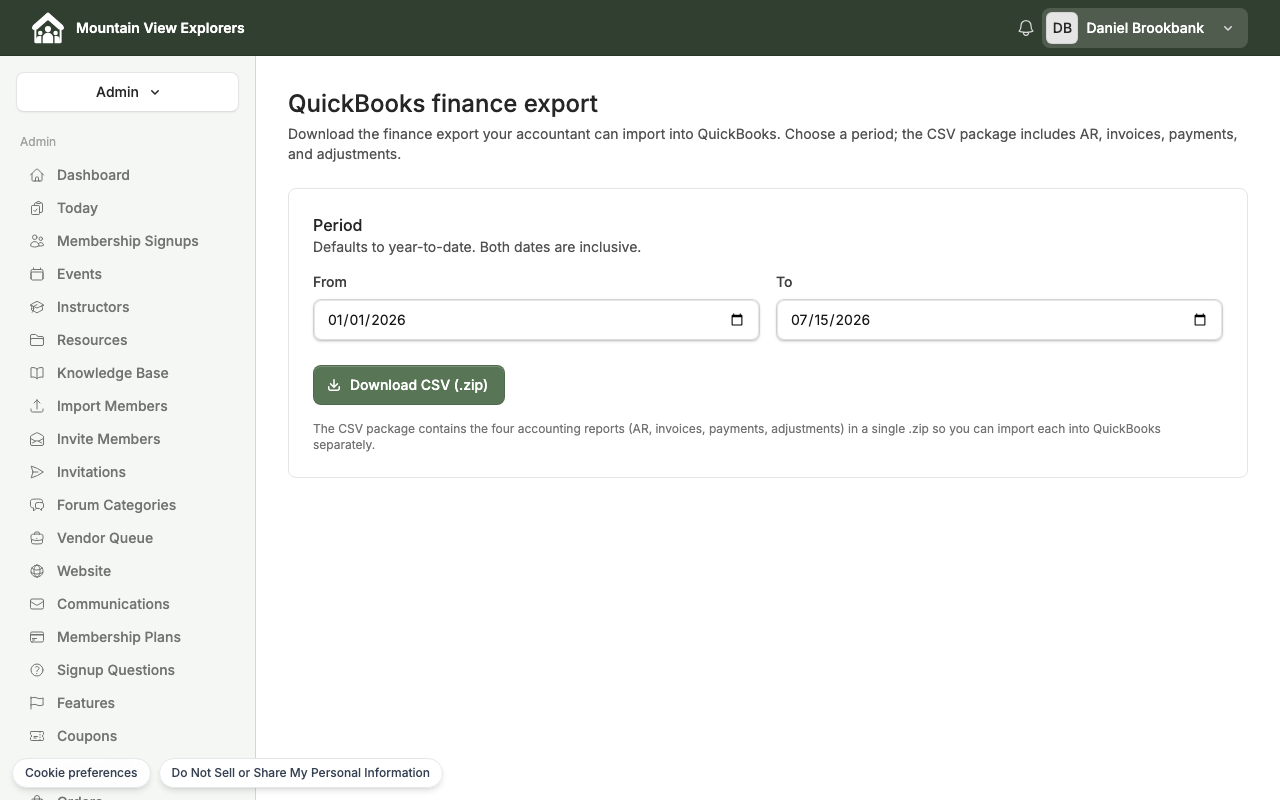
In the Admin panel, scroll down the left sidebar and click QuickBooks Export.
Step 2 — Set the date range
The export defaults to year-to-date (January 1 through today). Adjust the From and To dates if you need a different period. Both dates are inclusive.
Step 3 — Download the CSV package
Click Download CSV (.zip).
Your browser downloads a .zip file containing the four CSV reports. Send the .zip to your accountant — they can import each file into QuickBooks separately.
QuickBooks Desktop IIF export (optional)
If your co-op uses QuickBooks Desktop and needs an IIF file instead of CSV, this is available as an opt-in add-on. The IIF export button does not appear by default.
To enable it, contact CooplyHQ support. Once enabled, an Export IIF (QuickBooks Desktop) button will appear alongside the CSV button on the same page.
What's next
- How to View and Manage Membership Payments — track individual family balances and payment history